
3 Types of ‘Breadcrumbs’ – And Why You Should Include Them on Your Site

Breadcrumbs – and no I don’t mean the ones you use when frying something – is a term I recently became re-acquainted with. While not an absolute critical part of your site’s navigation, breadcrumbs can provide an alternative way for visitors to see where they are on your site.

The term comes from the popular fairytale Hansel & Gretel and refers to the breadcrumbs the two laid out to help them find their way back (…this metaphor though shouldn’t be taken too far as you’ll see later on).

Breadcrumb navigation, while more of a secondary component, generally appears horizontally across the top of a webpage below the main navigation, title bars and headers.

This component of your site’s navigation allows users to easily see where they are in your site’s hierarchy – since most search results refer visitors to pages within your site, breadcrumbs help visitors see where they are and make it easier for them to navigate to higher-level pages.

Breadcrumbs increase site usability, functionality, shows the hierarchy of all your site’s pages and eliminates the need to make additional clicks to reach other pages.

Besides the usefulness to your users, the benefits to your site and business are equally significant – research and comparisons have shown that including breadcrumbs result in longer site visits, lower bounce rates and increased interest.

Breadcrumbs also yield valuable search engine benefits by providing another opportunity to highlight important keywords – either through the breadcrumbs themselves or the specific anchor-text links pointing to internal pages.

Breadcrumbs also adds content relevancy to all of your pages since they’re all keyword intensive. As you know, relevancy is an important ranking component Google uses for links and so forth.

Now that we know what they are and how they can benefit your site, what are the different types of ‘breadcrumbs’ I can include on my site? Continue reading for a brief description of the three types, or formats of breadcrumbs available.

1. Location-based breadcrumbs

Perhaps the most common, this type of breadcrumb navigation indicates where the current page is in the site’s hierarchy. In the horizontal bar, users are given links to pages or categories that are a ‘level up’ from the page they’re looking at. These ‘level-up’ pages are commonly referred to as the ‘parent’ category.

Courtesy of HongKiat

2. Attribute-based breadcrumbs

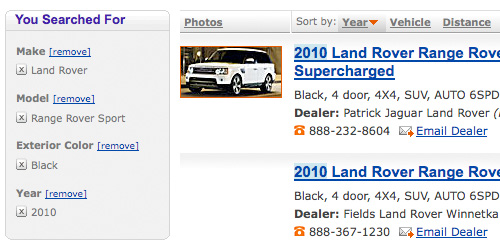
Common on e-commerce sites, these breadcrumbs indicate attributes or categories ascribed to the current page with a site. Products not only will fall in a certain category but will have certain attributes as well. The best example of this is a site listing cars for sale – an SUV will fall into that category but will also include attributes like color and year model.

Courtesy of HongKiat

3. Path-based breadcrumbs

Really the least common, this type of breadcrumb navigation most closely resembles the Hansel & Gretel fairytale. They indicate steps a visitor has taken to arrive at the page they’re currently on. The breadcrumb will include links to pages they’ve previously visited. It’s the least popular since this type of navigation essentially replicates the forward and back buttons.

(It can also get quite complex considering how many sites contain literally thousands of pages. That’s why we say it’s problematic to take the ‘breadcrumb’ metaphor from Hansel & Gretel too seriously.)

While breadcrumbs are not the most critical component of your site, they can provide many valuable benefits. They’re not meant to answer your visitor’s questions or make sense of confusing information architecture.

However, they do add make it easier for users to move around your site and lead to many tangible benefits for both you and your site’s visitors.

34 Things You Must Do When Redesigning your Website

Every so often, it’s a good idea to give your organization’s website a fresh new design. Doing so makes your company look active and dedicated to giving your customers the most advanced products and services.

But considering the fact many websites contain hundreds, maybe even thousands of pages, it can be a daunting task regardless of how careful you are. Proper planning helps ensure it all goes smoothly…no or very little planning can turn it all into a big nightmare.

Pages can get mixed up, deleted or otherwise not be available on the new site, which can end up costing your company thousands of dollars.

To avoid this calamity, you need to consider the following factors before, during and after. Continue reading to learn about all of these considerations you need to keep in mind when redesigning your website.

Before doing anything though, you need to get some baseline information and backup your old site just in case something goes awry. Load time, conversion rates, search rankings, bounce rates for your top landing pages and a list of important inbound links is information you need to have in-hand before you even get started.

Once you have all of this, it’s time to start your site re-design. Taking the following 34 steps during this process will ensure it all goes smoothly and you begin reaping the benefit of a new website as quickly as possible.

Prior to New Site Launch

1.       Have the old site available to put back online immediately if something goes wrong.

2.       Retain your existing URL structure if possible so you can minimize impact on search rankings.

3.       Address methods to eliminate duplicate content to prevent it from occurring in the first place.

4.       If you’re unable to keep existing URL structures, have a plan on how you will handle switching to the new file structure, including 301 re-directs, updating links, marketing materials and PPC ads.

5.       Keep a copy of the old site on-hand just in case.

6.       Use a link checker utility like Xenu to scan your new site and find any broken links.

7.       Take a moment to review titles and meta descriptions on your new site.

8.       Before launching, check your new site manually using multiple web browsers (Internet Explorer, Firefox, Safari and Chrome). Many differences exist between these browsers.

9.       Update XML and HTML sitemaps so search engines can easily crawl your new site.

10.   Verify all web forms and other interactive features are working properly.

11.   Protect your site from competitors and search engines during development. The best way to accomplish this is to develop the site locally and internally to your firm.

12.   Review existing RSS feeds

13.   Verify your new site will work properly with traffic tracking codes like Google AdWords and Google Analytics.

14.   Develop a plan to add current analytics tracking to your new site before launch.

During new site launch

15.   Did you back up your old site? If not, now is your last chance.

16.   Update your .htaccess and robots.txt files so any 301 redirects will work properly.

17.   Be sure AdWords and PPC campaign pages are updated and working properly.

18.   Update payment gateways or other important sites if your server’s IP address changes.

19.   Test all email address and make sure they’re working properly.

20.   Remove any temporary no-index tags, robots.txt and be sure any other robot control tags are updated in case you had something blocked off during the development process.

After new site launch – catching any mistakes

21.   Run your spider/link finder once again to catch any broken links you may have missed.

22.   Test your new site’s load time. Google has claimed load time is now a big ranking factor.

23.   Make double-sure you put tracking codes/scripts on your new pages

24.   Check server logs for any 404 or other server errors.

25.   Look at your Google Webmaster Tools and Bing Webmaster accounts to see if the search bots are spotting any errors.

26.   Update any broken inbound links at the source of the link or through a 301 re-direct.

27.   Verify PPC ads are still correct.

28.   Make sure your XML sitemap is up-to-date.

29.   Compare bounce rates for the new site vs. the old one.

30.   Monitor how newly indexed (…or re-indexed) pages are ranking.

31.   Now that your site is live online, test it once again with all web browsers and even a mobile smartphone if you’re able to.

32.   Manually test all web forms and other interactive scripts.

33.   Check where your site is in the search results after the search engines have indexed it once again.

34.   Go to Google and Bing and type “site:yourdomain.com” in the search bar to see if the number of pages indexed has improved over your previous numbers.

Taking these all important steps helps ensure your site transition goes as smoothly as possible. Also, they help you spot any errors and allow you to make those corrections before any negative consequences arise.

Double, perhaps even triple check your site to make sure everything is working properly. If not, you’re certain to suffer devastating setbacks in the search engines as well as eroding good will of your site visitors.

Remember what Thomas Edison once said – “Good fortune is what happens when opportunity meets with planning.”

“Don’t Make Me Think” – A Common Sense Approach to Web Usability – Review & Summary Part III

And for the final part of our book review on Don’t Make Me Think, author Steve Krug addresses a few other concerns you’re likely to encounter when designing your website. He details the ‘common courtesy’ of having a usable website and the concepts of goodwill – ways you can boost goodwill as well as ways it can get destroyed.

He also outlines other issues to like accessibility for people with disabilities and the importance of including elements in your page to help ALL visitors, not just the perfect ones you’ve identified through market research. The final chapter quickly discusses ways to convince your boss of the validity of your recommendations. Some bosses and executives may have a difficult time understanding the virtue of good web usability. Krug gives some great examples for you to consider.

If you haven’t seen them yet, read parts I and II of our book review to fully understand the intricacies of web usability.

Section IV – Larger Concerns and Outside Influences

Chapter 10: “Usability as common courtesy – Why your Web site should be a mensch”

Besides building clarity into your website, you also need to be considerate of your users as well. Is your site clear? Does it behave badly and erode goodwill among users?

Consider this:

You’re booked on a flight but a pilots’ strike begins two days before you’re scheduled to leave. You go to the airline’s website to find information about the strike. After searching for awhile you give up amid frustration. Undoubtedly, this erodes much goodwill you had toward the airline.

Users in fact, including you, have a reservoir of goodwill. You begin very optimistic and eager to find what you’re looking for. Not

From Don’t Make Me Think: A Common Sense Approach to Web Usability. © 2006 Steve Krug. Used by permission

From Don’t Make Me Think: A Common Sense Approach to Web Usability. © 2006 Steve Krug. Used by permission

everyone’s reservoir is the same…some people have a shorter fuse than others. And this also depends on the situation. Your goodwill will drain away quicker if you’re in a hurry.

Fortunately, goodwill is refillable so if the site makes some mistakes but makes up for it, the user will leave in a good mood and more likely to return.

Here are some things that erode goodwill:

1.       Hiding information people are looking for

2.       Punishing users for not doing things your way

3.       Asking for information you don’t really need

4.       Shucking and jiving users

5.       Putting too much ‘sizzle’ (i.e. Flash intro) in the way

6.       Site looks amateurish

And some things that increase goodwill:

1.       Knowing what your visitors are looking for and making it obvious and easy

2.       Telling your visitors what they want to know

3.       Saving steps

4.       Putting effort into your site

5.       Making it easy to recover from errors

6.       Providing creature comforts like printer-friendly pages

Doing things like this and more to increase goodwill is not only courteous, but good business practice. If people coming to your site have an easy time and enjoy themselves, they’ll be more likely to return and tell their friends.

Chapter 11: “Accessibility, Cascading Style Sheet, and you”

Unless you decide all of your users are perfect in every way, you’re going to need to think about accessibility. Adding features into your site for disabled persons is not only good business, it’s the law.

Specifically, the law is what’s known as Section 508 of the 1988 Amendments to the Rehabilitation Act, which specifies information technology accessibility standards for companies wanting to do business with the U.S. Government.

When discussing accessibility, designers and developers naturally get a little anxious since it potentially means more work for them. Making a site accessible is definitely harder than it should be, but well worth it from both a legal and business standpoint.

To understand how to make your site accessible, there are several articles and books you can read like Building Accessible Websites by Joe Clark and Constructing Accessible Websites by Jim Thatcher and others.

Using Cascading Style Sheets (CSS) is one thing you can do to make an accessible website. In the beginning of the Internet, everything was text. Designers and developers didn’t have much control over layout so they began using tables.

CSS sheets give you much more control over formatting, consistency among browsers and other benefits. CSS sheets also allow you to make specific changes in your site’s HTML code to make it more accessible.

Chapter 12: “Help! My boss wants me to_______”

There will be times your boss will want you to do things that are not good from a usability standpoint.

Maybe they’ll want the site to ask users for more personal information than you need. Or maybe they want more ‘pizazz’ to the site – things like splash pages, animation and music.

Steve provides some great examples of letter he’s written to CEOs and other executives warning them about the dangers of doing these things and others.

Well that brings us to the conclusion of Don’t Make Me Think. It’s a very interesting read and easy too – if you’ve got about 4-6 spare hours (…whew, who does?), you can easily read it in one sitting. If not, put it down and easily pick up right where you left off.

To conclude, all of the tips or ‘rules’ outlined here and detailed more in the book are not iron clad. There are certain situations – or interfaces – where doing something contrary to what’s in the book or on here is okay. If your site for instance is designed to make people think, puzzle or challenge them, then by all means do what you got to do.

You can buy Don’t Make Me Think on Amazon for a great price. I certainly recommend it if you want to learn more about a core issue

From Don’t Make Me Think: A Common Sense Approach to Web Usability. © 2006 Steve Krug. Used by permission

From Don’t Make Me Think: A Common Sense Approach to Web Usability. © 2006 Steve Krug. Used by permission

to being successful online.

Let us know if you’ve picked up a copy and your thoughts…we’ll provide further updates into the year.

Until next time…

Eye-Tracking Studies Reveal Impact of Images on Web Pages

It’s been a long held view that images on web pages help with customer retention and conversions. But new eye-tracking studies from usability expert Jakob Nielsen shows dramatic differences in the impact different types of images have.

In short, users pay attention to photos and images containing relevant information while they tend to ignore images designed to “jazz up” a web page.

Even with high-speed Internet connections and ultra fast downloads, Nielsen’s research shows how users continue to be annoyed with flashy images containing no real information.

E-commerce sites for instance benefit tremendously from product photos as shown by the image below on the left.

Another popular photo option – enlarged product photos when requested by the user. Five years ago, Nielsen said not including a large enough photo so customers could see a product in more detail was one of the biggest mistakes webmasters made. While users dislike big photos that get in their way, they do seem to like looking at them per their requests when evaluating a product.

One more takeaway from Nielsen’s eye-tracking study regarding e-commerce sites – copying what the big guys do isn’t always the best idea as shown by the image from Amazon.com above. Since Amazon offers such a wide-range of products, they have a standardized layout for their pages. What works for some products doesn’t work so well for others for them.

On the other hand, the Pottery Barn (whose image is above), has a generally narrow range of products. They can tailor images to specific products much easier and as a result, these images get more attention.

Assuring customers they’re dealing with real people by including a head shot or portrait of important company personnel is another way images are very beneficial

In fact, it’s also been a long held view that including portraits of company employees was crucial to effectively presenting a company’s image online. This helps users put a name with a face and assures them they’re not dealing with some “faceless” corporation that’s far removed from them.

Look at the following example – according to this eye-tracking study, users spent 10% more time looking at the portraits than the rest of the site’s content, which accounted for 316% more content than the portraits themselves.

However, if it’s obvious the pictures are stock photos and don’t represent actual people at a company, users tend to ignore them.

In the end, pictures can contribute a lot of value to your website if they’re done right. Simply copying and pasting generic images to your page will largely be ignored according to these studies.

Designing Landing Pages that Draw In and Convert Site Visitors

As a web copywriter, I spend the bulk of my time trying to phrase information in a way that’s appealing to people who encounter it. But there’s one thing that many of us copywriters fail to acknowledge – good design helps support content.

If a site seems drab and visually unappealing, it’s to be expected that a person’s time on that page will be very short. That wonderful article or landing page you labored over for hours sits languishing online like a fish out of water.

Now if you’re exclusively a content developer like me, you don’t have to know all the ins and outs of good design. What you do have to understand are some basic fundamentals of what works and what doesn’t so you can be sure that great content you develop shines to its full potential. And knowing it helps when you’re working with a web designer either on your own team or with another company.

Continue reading for some good general guidelines of organization, formatting and designing your web pages. These tips were part of a whitepaper entitled Best Practices for Conversion: The New Engagement Funnel in 7 Steps.

1. Scrutinize your competition

Go through your competitor’s web pages and look at their copy and layout. Document places you feel stumped and then compare this page with yours. Revise or eliminate sections to make yours better.

2. Place most critical page elements within the first 300 pixels

According to usability research from many sources, over half of site visitors do not look “below the fold.” Therefore, get right to the point and keep your value proposition within your screen’s first view.

3. Keep your layout simple

Increase reader comprehension by using a one-column format with ample margins and white space. Limit paragraphs to five lines…dense copy discourages reading. Simple layouts are also more conducive to search engine crawlers and in turn, rankings.

4. Be obvious and use standard usage conventions

Site visitors shouldn’t have to think very much to understand your message and how to use your page. Be clear when describing links and use a standard underline format when linking to another page, like your shopping cart for example.

5. Make sure your page loads quickly

If a page isn’t loading quickly, most visitors will get frustrated and leave – and the more ‘junk’ you have on a page, the longer it will take to load. You should strive for no more than 8 seconds on a dial-up connection (yes, there are many people who still use dial-up to get online.)

Learn more about these and other elements to consider when designing your landing pages. Remember, your landing page is potentially the last place your visitors will see before purchasing. If your goal is lead generation, it’s step 2 in the process. It doesn’t matter if there are only a couple steps or many in your marketing funnel, your landing page needs to excite visitors and build confidence in your products/services and company.